Every freelancer needs a clear picture of their finances: how much they’ve earned, how much they’ve spent, how much they owe in taxes, and how much profit they’ve actually made. Without a freelance income tracker spreadsheet, this information lives in scattered invoices, bank statements, and mental estimates — which is why so many freelancers are surprised by their tax bill or unsure whether they’re actually profitable.
This guide provides a free, downloadable income tracker spreadsheet template (available for both Google Sheets and Excel), explains how to use it effectively, and covers the financial tracking habits that keep your freelance business healthy.
Why You Need a Freelance Income Tracker
Your invoicing tool tracks what you’ve billed. Your bank account shows what you’ve received. But neither gives you the complete financial picture. A dedicated income tracker fills the gaps:
- Revenue visibility: See exactly how much you’ve earned this month, quarter, and year — not just invoiced, but actually received.
- Expense tracking: Record business expenses alongside income for a clear profit picture.
- Tax preparation: Know how much to set aside for quarterly estimated taxes and have all the numbers ready when filing.
- Client profitability: Compare revenue per client against time invested to identify which relationships are profitable and which aren’t.
- Trend analysis: Spot income patterns, seasonal variations, and growth trends that inform business decisions.
For comprehensive financial guidance, see our pillar guide on freelancer financial management.
What to Track in Your Income Spreadsheet
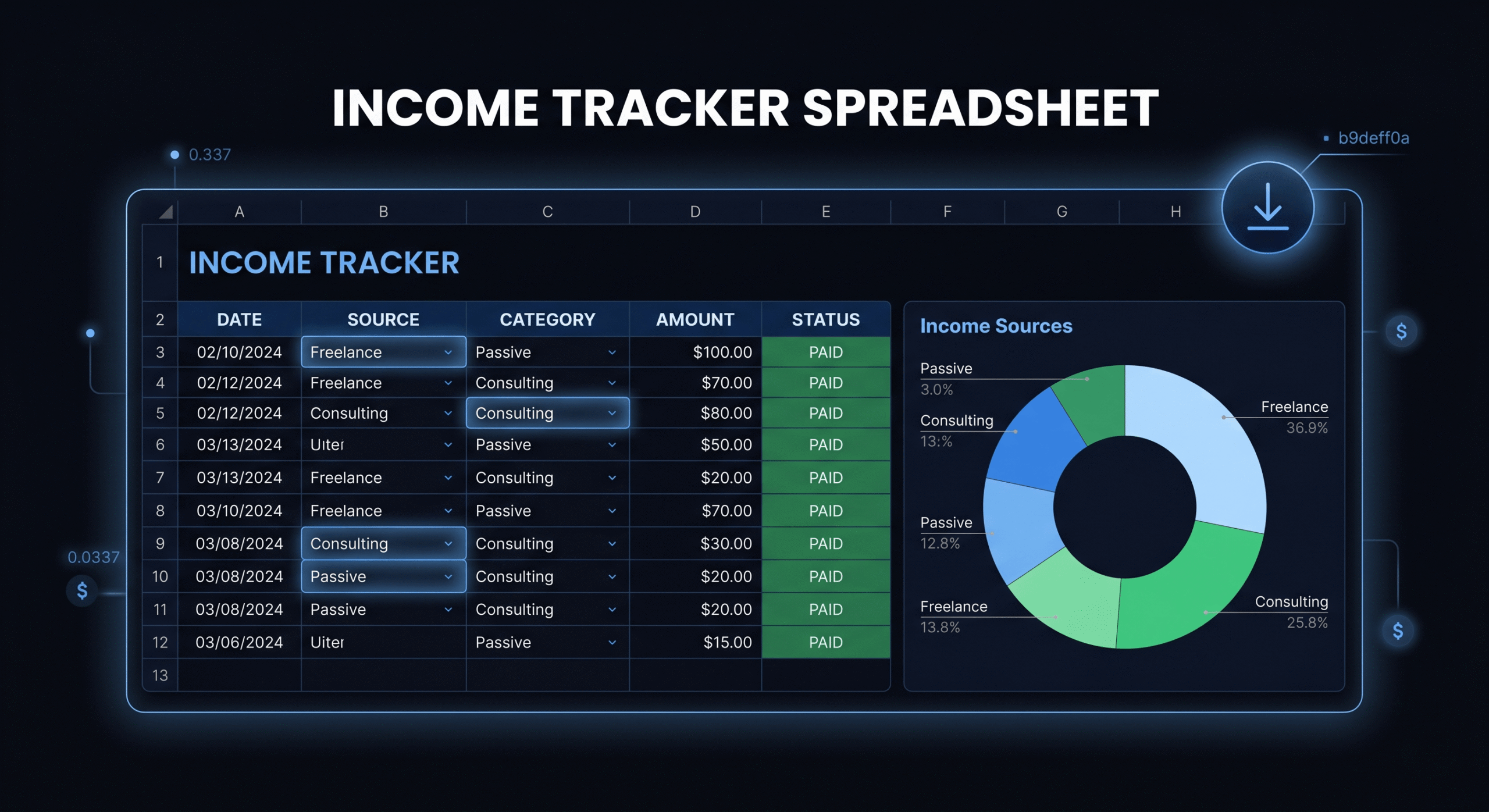
Your freelance income tracker should capture the following data points for every transaction:
Income Tracking Columns
- Date: When the payment was received (not when the invoice was sent)
- Client name: Who paid you
- Invoice number: Reference to the specific invoice this payment relates to
- Project/description: Brief description of the work
- Amount invoiced: The total amount on the invoice (before deductions)
- Amount received: What actually hit your bank account (after payment processing fees)
- Processing fees: Stripe, PayPal, or other gateway fees deducted from the payment
- Currency: If you work with international clients, track the original currency and converted amount. See our multi-currency invoicing guide.
- Payment method: Stripe, PayPal, bank transfer, check, etc.
- Status: Paid, Pending, Overdue
Expense Tracking Columns
- Date: When the expense occurred
- Category: Software, hosting, equipment, travel, marketing, professional services, etc.
- Description: Specific item or service purchased
- Amount: Cost of the expense
- Tax deductible: Yes/No/Partial — flag whether this expense is a business deduction
- Receipt: Link or reference to the receipt/proof of purchase
Summary/Dashboard Tab
- Total income (monthly, quarterly, YTD)
- Total expenses (monthly, quarterly, YTD)
- Net profit (income minus expenses)
- Tax reserve (25–30% of net profit)
- Income by client (who’s your biggest revenue source?)
- Income by month (trend line)
How to Set Up Your Income Tracker
- Download the template. Use the free DevInvoice income tracker template (Google Sheets or Excel) linked at the bottom of this article, or create your own using the column structure above.
- Set up your tabs. Create separate tabs for: Income Log, Expense Log, Monthly Summary, and Tax Estimates.
- Enter your starting data. If you’re mid-year, back-fill your income and expense data from your invoicing tool and bank statements.
- Update weekly. Spend 15–20 minutes every Friday entering the week’s income and expenses. Don’t let it pile up — monthly catch-ups are inaccurate and stressful.
- Review monthly. At the end of each month, review your summary dashboard. Are you on track for your annual income goal? Are expenses creeping up? Is your tax reserve adequate?
Using Your Income Tracker for Tax Planning
One of the most valuable uses of your income tracker is tax planning. Here’s how to use it:
Quarterly Tax Estimates
At the end of each quarter, sum your net profit (income minus deductible expenses) and calculate 25–30% as your estimated tax payment. Compare this against what you’ve already set aside in your tax savings account. Adjust if needed and make your quarterly payment on time.
Deduction Tracking
Your expense log becomes your deduction record at tax time. Every item flagged as “tax deductible” is a potential deduction on your return. Common freelance deductions are covered in our financial management guide.
Annual Summary for Tax Filing
At year-end, your income tracker provides everything your accountant needs: total revenue, total expenses by category, net profit, and quarterly tax payments made. This saves hours of preparation time and ensures nothing is missed.
Income Tracker vs. Invoicing Software vs. Accounting Software
These three tools serve different purposes and work best together:
- Invoicing software (DevInvoice): Creates and sends invoices, tracks payment status, manages clients. This is the revenue collection tool.
- Income tracker spreadsheet: Consolidates income and expenses in one view. Provides the financial overview your invoicing tool doesn’t.
- Accounting software (Wave, QuickBooks): Handles bank reconciliation, financial reports, tax categories, and payroll. The formal record-keeping system.
For solo freelancers earning under $100K, a good invoicing tool plus a spreadsheet tracker covers 90% of your needs. Add dedicated accounting software when your volume or complexity justifies it.
7 Financial Tracking Habits for Freelancers
- Log income when received, not when invoiced. Revenue isn’t revenue until the money hits your account.
- Categorize expenses consistently. Use the same categories every month. Inconsistent categorization makes year-end tax prep a nightmare.
- Reconcile monthly. Compare your tracker against your bank statement every month. Discrepancies should be identified and resolved immediately.
- Track processing fees separately. Stripe’s 2.9% + $0.30 per transaction adds up. Track it — it’s a deductible business expense.
- Review client profitability quarterly. Some clients generate high revenue but consume disproportionate time. Your tracker reveals which relationships are truly profitable.
- Archive annual data. At the start of each year, archive last year’s data and start a clean tracker. Keep archives for at least 7 years for tax purposes.
- Use your tracker to set rate targets. If your tracker shows you’re earning $85/hr effective (after non-billable time), and your target is $120/hr, you know exactly how much to raise your rates.
Frequently Asked Questions
Can I use my invoicing tool instead of a separate tracker?
Your invoicing tool tracks what you’ve billed and what’s been paid, but it doesn’t track expenses, tax reserves, or net profit. A spreadsheet tracker complements your invoicing tool by providing the complete financial picture.
How often should I update my income tracker?
Weekly is ideal. Spend 15–20 minutes every Friday entering the week’s transactions. Monthly updates are acceptable but lead to inaccuracies and missed entries.
Should I track time in the same spreadsheet?
No. Time tracking is better handled in a dedicated tool (Toggl, Harvest) or your project management platform (Asana). Your income tracker should focus on financial data: money in, money out, profit.
What’s the best format: Google Sheets or Excel?
Google Sheets is better for accessibility (access from any device, automatic cloud saves). Excel is better for complex formulas and offline access. Both work well for income tracking. The template provided below works in either format.
Download Your Free Income Tracker Template
Stop guessing about your finances. Download the free DevInvoice income tracker template and start tracking every dollar that flows through your freelance business.
The template includes:
- Income log with all recommended columns
- Expense log with tax deduction flags
- Monthly summary dashboard with auto-calculated totals
- Quarterly tax estimate calculator
- Client revenue breakdown