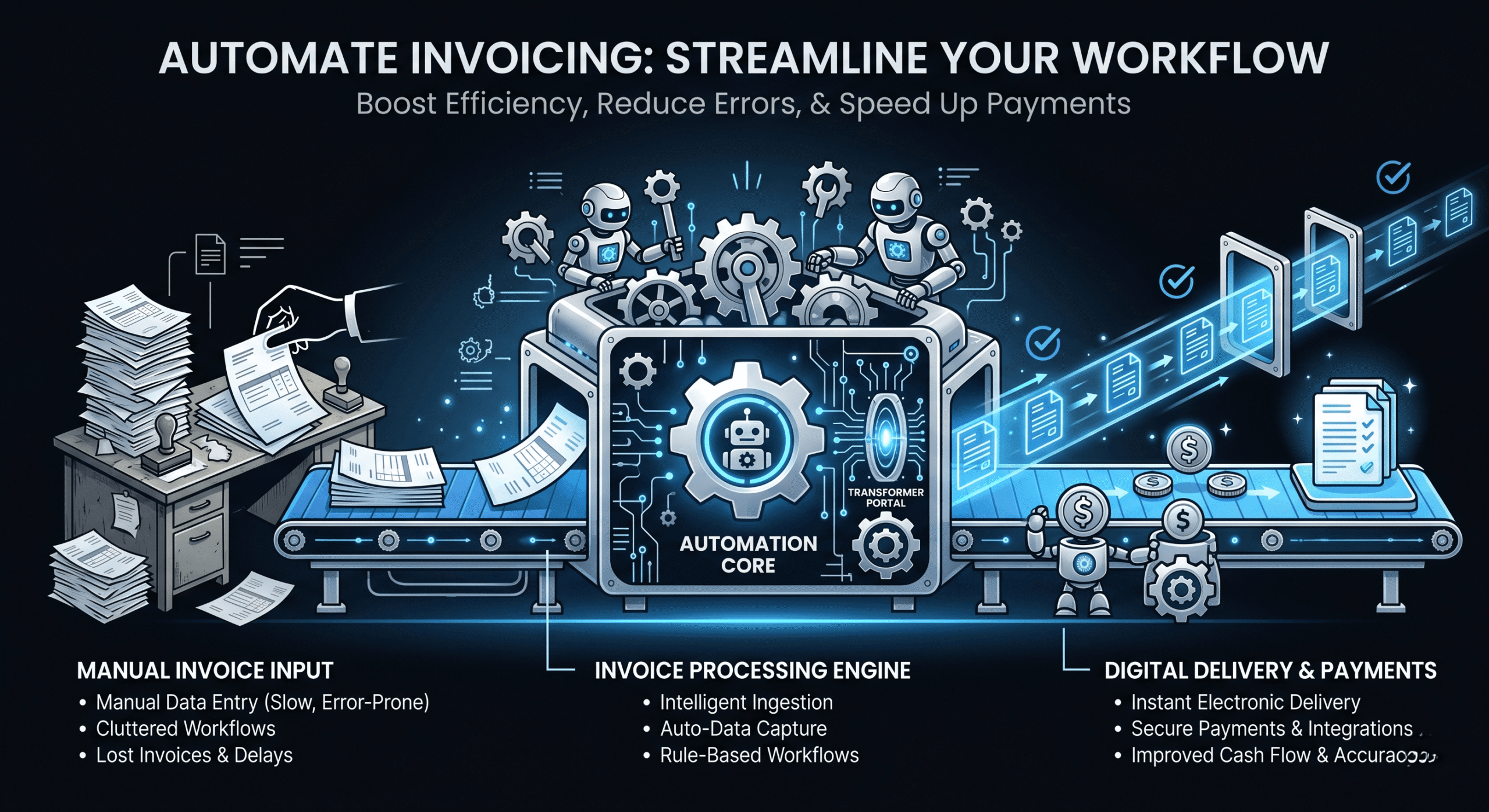
Manual invoicing is a time trap. Between tracking hours, creating invoices, sending emails, following up on payments, and reconciling what’s been paid versus what’s outstanding, the average freelancer spends 10–15 hours per month on billing-related tasks. That’s nearly two full workdays every month that aren’t earning you money.
The solution is to automate invoicing workflow from end to end. When done right, automation handles 90% of the billing process without your involvement — you track your work, and the system generates invoices, sends them, reminds clients, collects payment, and updates your records automatically.
The 5 Stages of an Automated Invoicing Workflow
A fully automated invoicing workflow has five connected stages. Here’s how each one works:
Stage 1: Automated Time & Task Tracking
The foundation of accurate invoicing is accurate time tracking. Use a project management tool like Asana to track tasks and log time as you work. With DevInvoice’s Asana integration, completed tasks and logged hours sync automatically — no manual data entry needed.
Key automations at this stage:
- Timer starts when you begin a task in Asana
- Time entries are tagged as billable/non-billable automatically based on project settings
- Completed tasks are flagged as ready-to-invoice
Stage 2: Automatic Invoice Generation
Once work is tracked, the next step is converting it into an invoice. Instead of manually creating each invoice, you pull billable tasks and time entries directly from your PM tool into a pre-formatted invoice template.
For project-based work, the invoice is generated from completed milestones. For hourly work, it’s generated from time logs. For retainers, it’s a recurring invoice that generates automatically on schedule.
See our guides on how to create an invoice and recurring invoices for detailed setup.
Stage 3: Automated Delivery
The invoice is emailed to the client automatically on the send date you specify. The email includes a professional summary, the invoice as a PDF attachment, and a direct payment link. No manual sending required.
Stage 4: Automated Payment Reminders
Payment reminders are the highest-ROI automation in your invoicing workflow. Set up automatic reminders at 3 days before due, on the due date, and 3/7/14 days after the due date. These catch 90% of late payments without any manual follow-up. See our late payment email templates for the email content.
Stage 5: Automated Payment Collection & Reconciliation
With Stripe integrated, clients pay directly from the invoice link. The payment status updates automatically in your dashboard. For retainer clients with auto-pay enabled, the charge happens automatically when the invoice is generated — zero-touch from start to finish.
Setting Up Your Automated Workflow (Step-by-Step)
- Connect your PM tool. Link Asana (or your preferred PM tool) to DevInvoice. Tasks and time entries sync automatically.
- Set up client profiles. Save each client’s details, billing rate, preferred currency, and payment terms. This data auto-populates on every invoice.
- Configure invoice templates. Set your branding (logo, colors), default line item structure, tax rates, and footer text. Template once, reuse forever.
- Enable Stripe payments. Connect Stripe to embed payment links in every invoice automatically.
- Set up recurring invoices. For retainer clients, create a recurring invoice with the billing schedule and let the system handle monthly generation and delivery.
- Configure payment reminders. Set your reminder schedule (pre-due, due-date, post-due) and customize the email templates.
- Test the workflow. Send a test invoice to yourself, verify the payment link works, and confirm reminders fire on schedule.
What to Automate vs. What to Keep Manual
Not everything should be automated. Here’s the breakdown:
- Automate: Time tracking sync, recurring invoice generation, invoice delivery, payment reminders (pre-due through 7 days past), payment collection via Stripe, payment status updates.
- Keep manual: Invoice review before sending (always verify accuracy), custom project invoices (unique scope = unique line items), follow-up emails after 14+ days overdue (these need a personal touch), new client onboarding and rate negotiations.
Tools for a Complete Automation Stack
- Project management: Asana (task tracking, time logging)
- Invoicing: DevInvoice (invoice generation, delivery, reminders)
- Payments: Stripe (one-click payment collection)
- Accounting: Wave or QuickBooks (expense tracking, tax reporting)
- Automation glue: Zapier (connect tools that don’t have native integrations)
For the full recommended stack, see our freelancer tool stack guide.
ROI of Invoicing Automation
Let’s quantify the savings:
- Manual invoicing: ~12 hours/month (invoice creation, sending, reminders, follow-up, reconciliation)
- Automated invoicing: ~2 hours/month (review and approval only)
- Time saved: 10 hours/month = 120 hours/year
- At $100/hr: $12,000/year in recovered billable time
- Cost of automation tools: $59.88/year (DevInvoice Pro at $4.99/month)
- Net ROI: ~334x return on investment
Even at half these estimates, automation pays for itself within the first week of every month.
Frequently Asked Questions
Can I automate invoicing for one-time project clients?
Partially. You can automate time tracking sync, invoice template pre-fill, and payment reminders. The invoice itself will need manual review since project invoices are unique. Recurring invoices are fully automatable.
What if an automated invoice has an error?
Always review invoices before they send. Most automation tools (including DevInvoice) let you set invoices to “draft” status for review before delivery. Approve each invoice before it goes to the client.
How do I handle clients who want custom invoice formats?
Save custom templates per client. DevInvoice lets you configure different branding, line item structures, and terms for different clients. The automation uses the client-specific template automatically.
Stop Billing Manually
Every hour you spend on manual invoicing is an hour you’re not billing for. Automate the repetitive parts, keep manual control over the important parts (accuracy, client relationships), and reclaim 10+ hours every month.